You can change how an image displays in a post or page. This article explains how to edit an image with the content editor.
The image editor menu lets you:
- Adjust the alignment. This allows you to wrap text around the image.
- Change the display size.
- Link to a URL or a file in your Media Library.
- Add a caption or alternative text.
Before you start
- You'll need a user account with a Contributor role or higher.
- Add the image to your page or post.
Steps
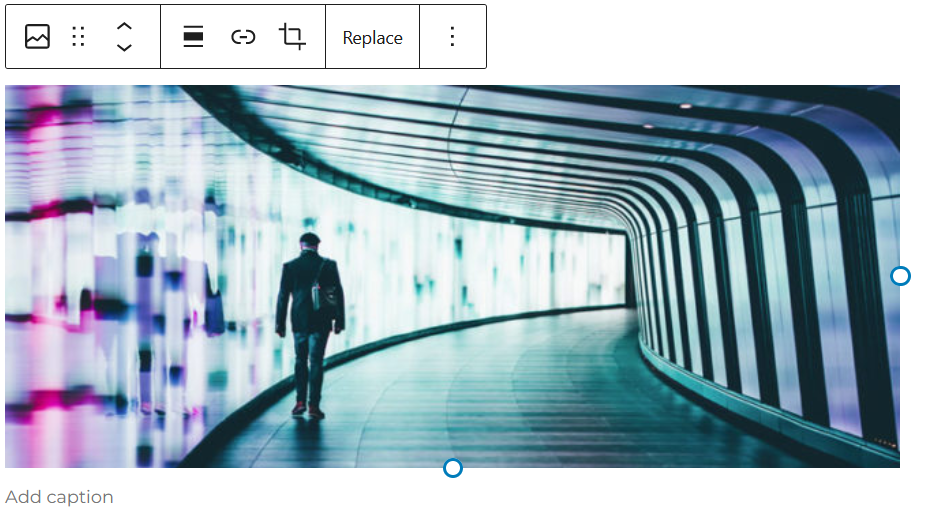
- Click on the image in the editor.
- In the toolbar that appears above the image, you can:
-
-
- Add a caption below the image.
- Change the alignment to Left, Center, Right or None.
- Crop the image.
- Create a hyperlink for the image.
- Replace the image.
-
Additional Image Settings
- Click on the Block tab in the right sidebar. Here you can:
-
-
- Add alt text
- Set image size
- Manually set image dimensions
- Access advanced HTML/CSS settings
-
-